
7 Common Reasons Backlit Graphics Look “Muddy” (and How to Fix It)
Backlit graphics are designed to glow—so when a backlit print looks muddy, dark, or dull once it’s in a lightbox, it can be frustrating (and expensive). Read along to learn how to avoid it and get premium quality results!
4/8/20265 min read
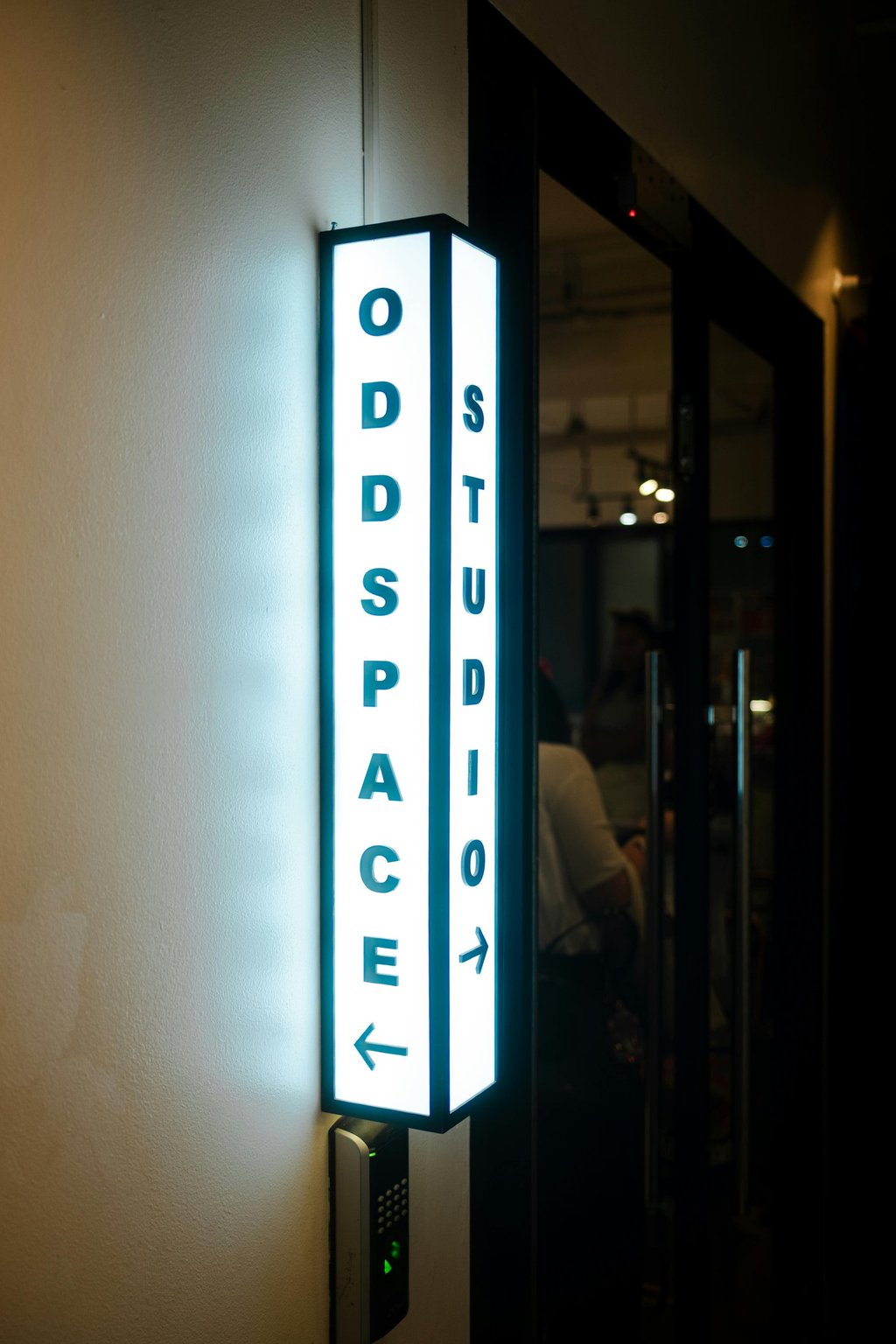
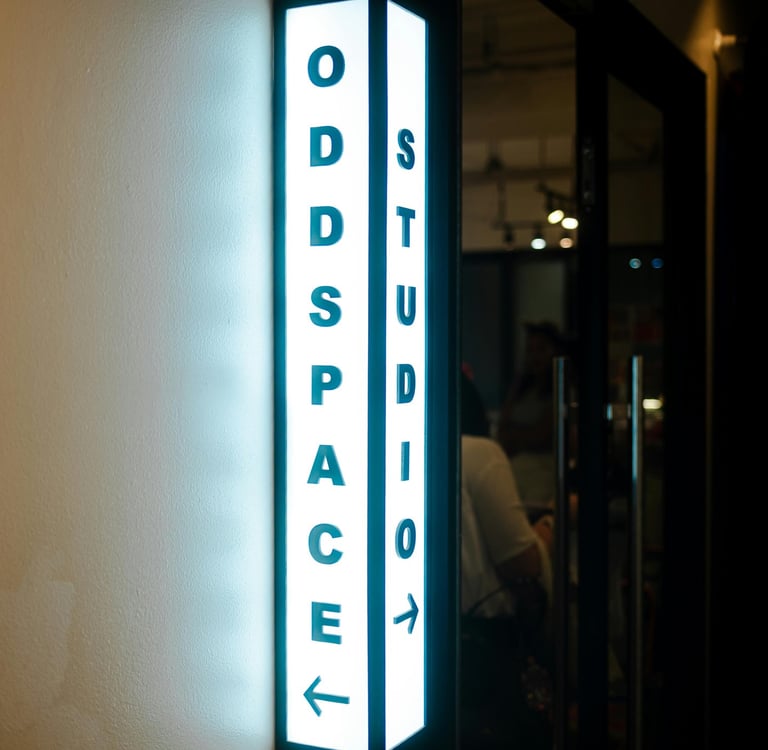
Backlit graphics are designed to glow—so when a backlit print looks muddy, dark, or dull once it’s in a lightbox, it can be frustrating (and expensive). The good news: “muddy” prints can normally be attributed to a few common problems that occur when printing backlit images, and the majority of them are correctable by following the appropriate guidelines regarding artwork preparation, material selection, and printing procedures. Listed below are some of the most frequent reasons for muddy backlit graphics and their remedies.
7 Reasons Why Your Backlit Graphics Look Muddy
Let's dive into the reasons why your backlit sign isn't what you expected.
1) Artwork created for front lighting (as opposed to back lighting)
A design that looks perfect on screen or on a regular print can fall apart when lit from behind. Lightboxes increase perceived contrast, deepen dark tones, and can make shadows “clog up,” which is why a backlit graphic's colors look dull or heavy.
How to Fix
Brighten midtones (not just highlights) and open shadows slightly.
Reduce heavy black overlays and dense gradients.
View a proof on a lightbox (or simulate backlighting) before final output.
If possible, ask your printer how to prepare artwork for a backlit film printing workflow for backlit film printing or Duratrans printing.
2) Ink is too dense (or the wrong balance of density)
One of the biggest reasons backlit prints look dark is simply too much ink coverage. Using the backlighting effect of the light behind the print causes the dark parts to get even darker. This usually occurs in prints involving rich blacks, blues, and skintones.
How to Fix
Control total ink limit / total area coverage in your workflow.
Use a "how to avoid muddy blacks in backlit printing" approach to black (avoid overly heavy rich black builds).
If you’re printing UV, discuss double strike vs single strike—double strike can increase saturation, but it can also increase muddiness if the file isn’t prepared for it.
If you’ve been researching the best ink density for backlit printing, apply it by testing a small strip: one version slightly lighter, one normal, and one slightly heavier—then judge on the actual lightbox.
3) Wrong material choice (backlit film vs translucent vs backlit flex)
Not all “translucent” media behave the same. A material that works for one backlit signage setup may look muddy in another. In this case, there may be some differences in terms of reflectivity.
Solution
Choose the appropriate medium based on your objective:
Duratrans printing/premium backlit film: The medium maintains clarity and vividness, even in expensive light boxes.
Backlit film printing: The medium suits standard light boxes.
Backlit flex: The medium serves well in lightbox signage. It may need different color expectations. Ask for the recommended media for your viewing distance, lightbox type, and whether it’s indoor/outdoor.
4) Color profile/CMYK conversion issues
Backlit output is unforgiving if your file is converted poorly or built in the wrong color assumptions. A common issue is inaccurate CMYK conversions that crush shadows or shift neutrals—resulting in backlit printing color profile in CMYK problems.
How to Fix
Use a consistent, print-intent workflow from design to RIP.
Avoid last-minute random CMYK conversions right before print.
Keep neutrals controlled (avoid “dirty” grays built from too many inks).
Request your printer’s preferred profile or guidelines for correct backlit file setup for lightbox printing.
5) Low-resolution images and heavy compression
Banding, noise, and artifacting become more apparent when using backlighting, particularly within gradient effects and dark tones. This may cause the entire image to look "muddy," even though the color values are accurate.
How to Fix
Use high-resolution images (especially for large lightbox signage).
Compression of your JPG image should not be too tight. Ensure there is a smooth gradient to avoid banding in the finished lightbox graphic.
6) The lightbox can also lead to uneven lighting.
It is not the print that may be unevenly lit; rather, it is the lightbox causing uneven lighting, leading to poorly lit sections as well as backlit prints that look washed out vs muddy (or both).
Solution
Spread out the LEDs and use a good diffuser. Extremely cold LEDs can adversely impact color representation. Always test the graphic in the real environment.
7) Lack of use of white ink or mistakes in layering (in certain cases)
There are certain types of UV prints that need white ink to be used as a layer. This impacts how bright and vivid the printout is going to be. When one asks, "Should I use a white ink layer for backlit prints?" the answer would depend on the media.
Solution
Think of making use of white ink for layering under certain circumstances while printing UV backlit graphics.
Do a small test print first—white layering can change contrast and overall tone.
Quick “Before You Print” Checklist (Backlit Edition)
Use this as a simple lightbox graphic printing troubleshooting preflight:
Shadows opened slightly (no crushed blacks)
Controlled ink coverage (avoid overly heavy builds)
Correct profile/workflow for backlit printing
Media matched to the job (duratrans printing, backlit film printing, translucent printing, etc.)
Proof viewed on a real lightbox (or at least tested)
Lightbox lighting checked for hotspots and diffusion
Conclusion: Get brighter, Cleaner Backlit Prints—Without the “Mud”
When there is poor quality in a backlit display, there are likely a few causes related to how the files were set up, ink density used, the media chosen, and even lighting. If all of these work together, then backlit graphics will be of superior quality.
In need of backlit printing in Karachi? Get a quote today from Stampare Productions. Send us your design files for immediate review. You will be guided towards the selection of the right medium for printing. We will also give you suggestions on how to set up your print on lightbox signage design.
Frequently Asked Questions
1) Why do backlit prints look muddy when everything looks good in the photo?
Because it creates its own light. The print output will have ink and requires the passage of light through the medium to be visible. The dark areas of the image are seen to get darker under backlighting conditions.
2) How to fix muddy backlit graphics?
First, one must make the shadows lighter. Take away the dark masks, and reduce the ink density. The quantity of ink needed in a backlit print that looks muddy can only be known after conducting a trial print. This step needs to be taken before the lightbox graphics are printed.
3) What would be the better material between Duratrans printing and backlit film printing?
Duratrans printing usually is an expensive material to be used for indoor lightboxes with high visibility. Backlit film printing, on the other hand, is perfect for general purposes, such as backlit banner signs.
4) My backlit print looks dark. How to fix—should anything be done?
This just means there is too much ink or there is shadow compression in your file. Moreover, insufficient light from the light box is responsible for creating such an issue. Please make sure that your file settings allow for backlit display viewing.
5) Is white ink required for backlit printing?
It entirely depends on the kind of printing media you choose and whether you will use UV ink or not.
6) How to pick between double strike vs single strike for backlit signage?
Double strike vs single strike is a common debate. Double strike can boost saturation for backlit signage, but it can also increase muddiness if the artwork isn’t prepared. If your goal is clean highlights and detail, a single strike with proper file adjustments often performs better—test both on your lightbox to decide.
Contact
Reach out for custom UV printing quotes
Phone
asif_lone@hotmail.com
+92 3335 5344 43
© 2025. All rights reserved.
Trust & Process: How It’s Made—From Order to Pickup