
5 Best File Types for Logo Printing & Text: Simple Guide for Perfect Printing
You found the perfect gift. You send your logo on WhatsApp. It looks fine on your phone. Then the print arrives… and your logo is blurry. That’s why 500+ people search for the best file types for logo printing every month. This guide gives you the file requirements for custom products so your print is sharp.
6/8/20266 min read
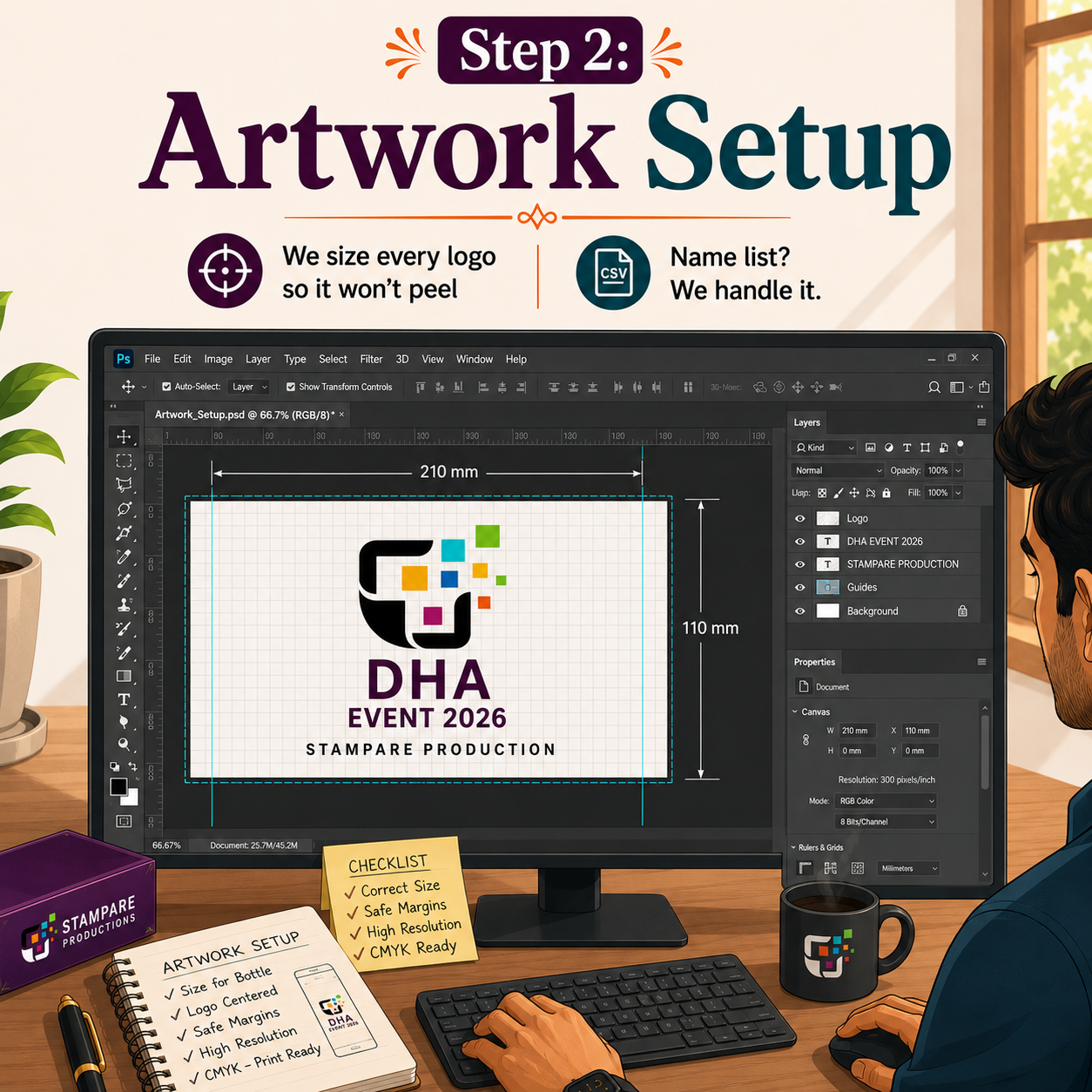
You found the perfect gift. You send your logo on WhatsApp. It looks fine on your phone. Then the print arrives… and your logo is blurry, pixelated, or has a white box around it.
That’s why 500+ people search for the best file types for logo printing every month. Designers, procurement teams, and first-time buyers all need to know logo file formats for printing that actually work on all materials.
This is the #1 support question we get at Stampare Productions. “Why is my logo blurry when printed?” This guide gives you the file requirements for custom products so your print is sharp. No wasted money.
For the full production breakdown, see our pillar: How Custom Personalized Gifts Are Made at Stampare Productions.
Why File Type Matters: Blurry Print = Wasted Money
Logo file formats for printing fall into 2 types: vector and raster. Pick wrong, and your gift looks cheap.
Vector files for printing include AI, EPS, PDF, and SVG. These use math lines. You can scale them from 1mm to 10 feet. Zero blur. Perfect for laser engraving and UV printing. This is a print ready logo file.
Raster images include JPG, PNG, and WhatsApp photos. These use pixels. Zoom in and you see blocks. Send a 72 DPI WhatsApp image for a 5 cm logo, and it will print blurry. That’s why we reject them.
Sharp engraving needs vectors. A clean UV print needs 300 DPI minimum. If you send the wrong image format for printing, we can’t fix it. We don’t print blurry logos.
Top 5 Best File Types for Logo Printing and Text
Let’s explore the top file types that produce the perfect text after printing.
#1 Adobe Illustrator File
An Adobe Illustrator file is the #1 best file type for logo printing. This is a true vector file for printing.
Why is an AI file for printing the best? No quality loss. Scale to any size. Your logo on a bottle or 2 ft. nameplate stays razor sharp.
Best file for engraving text: The laser follows clean vector paths. No jagged edges.
CMYK color mode: We convert RGB to CMYK accurately for UV print. No color shifts.
Outlined text: Fonts converted to curves means we don’t need your font file. Text won’t change.
How to check: File ends in .ai. Opens in Adobe Illustrator. Under 10MB usually. This is the print ready logo file agencies use.
#2 PDF File
PDF for logo printing is #2 because most people have it. But not all PDFs are equal.
PDF vector is best. Created from AI or CorelDraw with outlined text. Prints perfect.
PDF raster is bad. Someone saved a JPG as a PDF. Still blurry.
How to know your PDF is a vector? Zoom to 800% in Adobe Reader. If lines stay sharp, it’s a vector. If you see pixels, it's a raster image. Reject it.
The best file for UV printing a logo is a vector PDF. Keeps transparent background and CMYK colors. Perfect for a logo on acrylic and a logo on steel.
Logo requirements for printing at Stampare Productions: PDF must have fonts outlined. If we open it and the font changes, we can’t print.
#3 PNG File
No AI or PDF? A 300 DPI PNG is your best raster option. This is a high resolution logo for printing.
PNG vs JPG for printing: PNG wins. Why?
Transparent background logo printing: No white box on UV print. Critical for a logo on wood and a logo on a bottle.
300 DPI minimum: This is the minimum DPI for printing on gifts. At 300 DPI, 2cm logo = 236 pixels wide. Sharp.
No compression: JPG compresses every save. PNG stays clean.
Is 72 DPI good for printing? No. 72 DPI is for screens. Print needs a 300 DPI logo or higher. 600 DPI for small text under 3mm.
You might ask, “Can I send JPG for printing?” Only if it's a 600 DPI JPG with no background. But PNG is safer. We reject 90% of JPGs because they’re pixelated logo files.
What size logo for bottle printing is the best? 300 DPI PNG, at least 1000 px wide.
What size logo for nameplate printing is the best? 2000px wide for A4 size.
#4 SVG File
SVG logo file or Scalable Vector Graphics. Designers use it for websites. We use it for cutting and engraving.
Vector file for printing benefits include:
Scalable: Like AI and EPS. No blur.
Small file size: Easy to email.
No logo file size for printing issues.
Perfect for cutting: Acrylic nameplates cut on laser use SVG paths.
SVG vs AI: AI has more print features. SVG is fine for simple logos. Complex art with gradients can break in SVG. Send AI if you have it.
The best image format for printing for cutting machines is SVG. For UV color prints, AI or PDFs are still better.
#5 EPS File
EPS file = Encapsulated PostScript. The printing industry standard for 30 years.
Why EPS works:
Vector logo: Infinite scale. Sharp engraving guaranteed.
CMYK color mode: Built for print. No RGB to CMYK conversion surprises.
Compatible: Opens in CorelDraw, Illustrator, and our laser software.
EPS vs AI: Almost identical. If your designer sends EPS, it’s perfect. This is a true vector file for printing.
File types accepted by Stampare Productions include the following:
AI
PDF vector
EPS
SVG
300 DPI PNG
These 5 give perfect printing.
3 File Types to Avoid
We reject the following files because they cause blurry print and customer complaints:
JPEG / JPG compressed: Saves space by throwing away data. Every save gives worse quality. You might ask, “Why does my logo have a white box?” It’s because JPG has no transparency.
WhatsApp images: Can you print a logo from a WhatsApp photo? No. WhatsApp compresses to 72 DPI. Even if the original was HD, WhatsApp kills it. A flat image becomes a pixelated logo.
Screenshots / Word Docs / PowerPoint: Is 72 DPI good for printing? No. Screenshots are 72 DPI. Word docs embed low-res images.
Can you print a Canva logo? Only if you export a PDF print or PNG at 300 DPI. Canva “share link” won’t work.
File rejection policy: If we can’t print it sharp, we don’t print blurry logos. We’ll ask for a better file before production.
How to Check If Your File Is High-Res: 300 DPI Rule
How to make a logo print ready in 10 seconds:
Right-click file > Properties > Details: Look for DPI or PPI. Need 300 DPI minimum.
Open in Paint or Preview: Zoom to 400%. If the edges stay smooth, it’s good. If you see squares, it’s low-res.
Check size: For a 3 cm print, need 354 px wide at 300 DPI. Under 1000px = risky.
What is a vector file for a logo: If you can zoom forever and it never blurs, it’s vector. AI, EPS, PDF, SVG.
Minimum DPI for printing on gifts: 300 DPI. Below that, use vector files only.
Don’t Have These Files? Next Steps
You might ask, “What if I don’t have a vector file?” In that case, you have 3 options:
Ask your designer: They have AI or EPS. Fastest.
Export new file: From Canva: Share > Download > PDF Print. From Word: Save as PDF.
Redraw service: We do not offer design services, but we redraw simple logos for Rs 500. We know how to convert JPG to vector for printing.
If you’re asking, “Why did my logo print blurry last time?” The answer is because you sent a WhatsApp image. Send AI, PDF, or 300 DPI PNG this time, and it will be perfect.
Conclusion: Get Perfect Print
By now, you probably understand that the best file types for logo printing are AI files, PDF vector files, EPS files, SVG logo files, and PNG files in 300 DPI.
Do not use JPG files, WhatsApp images, or screenshot images. Make sure to use 300 DPI. Use outlined text and CMYK color mode. Follow these logo requirements for printing, and your custom gift will look premium. No blur. No remakes.
Send Your File for Free Print Check by Stampare Productions. Send it on WhatsApp at 0333-553-4443. We’ll check your file in 10 minutes and tell you if it's a print ready logo file. No cost. No commitment.
Frequently Asked Questions
1. What is a vector file and why do I need it?
A vector file for printing uses math lines, not pixels. AI, EPS, PDF, and SVG are vectors. You need it because it scales without blur. Perfect for laser engraving and logos on steel. A raster JPG will look like a pixelated logo on gifts.
2. Can you print my logo from a WhatsApp image?
No. WhatsApp images are compressed to 72 DPI. Printing needs 300 DPI minimum. Submit the original copy of your AI, PDF, or high-resolution PNG files. It is our company’s file rejection policy when we reject files.
3. What DPI is required for printing small objects?
300 DPI minimum for anything over 1 cm. For a 2 mm text size minimum, like fine details, use 600 DPI for small text or vector files. Laser engraving on nameplates needs vectors for best results.
4. My logo has a white box when printed. Why?
You sent a JPG or flat image. JPG has no transparency. For printing logos on clear backgrounds to acrylics or woods, you need PNG or vector AI/PDF files. This is the reason why PNG vs. JPG for printing is important.
5. What is the difference between RGB and CMYK?
RGB is for screens. CMYK color mode is for print. If you send RGB, colors shift when we convert. Vector AI and EPS let us set CMYK. For UV print, always use CMYK. This prevents color surprises.
6. I only have a JPG. Can you still print it?
Only if it's a 600 DPI JPG and over 2000 px wide. We’ll check it for free. If it’s blurry, we offer a redraw for Rs 500. Or ask your designer for an AI file for printing. That’s the safest file type for custom products.
Contact
Reach out for custom UV printing quotes
Phone
asif_lone@hotmail.com
+92 3335 5344 43
© 2025. All rights reserved.
Trust & Process: How It’s Made—From Order to Pickup